


Home / Solutions & Products / CSDS Real-Time Network / How to Import Static Files into Trimble Business Center
How to Import Static Files Into Trimble Business Center
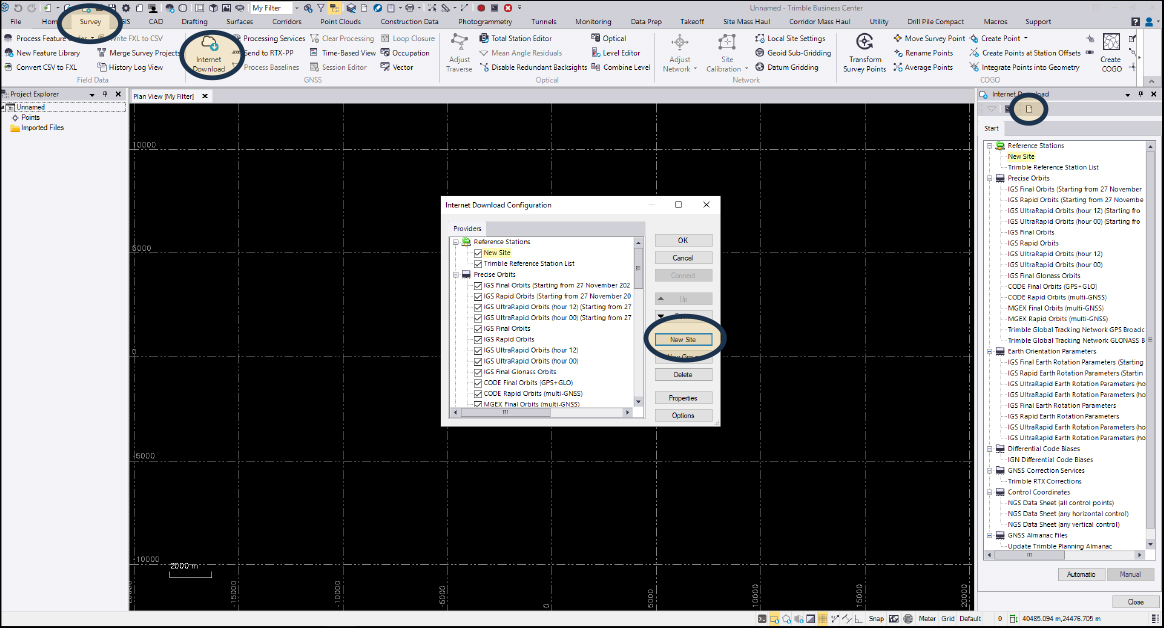
Figure 1
Refer to Figure 1 for the following steps:
- In your project within Trimble Business Center (TBC), select the SURVEY tab
- Within the GNSS section, click on Internet Download. This opens a window on the right-hand side.
- Select the blank paper icon to open the Internet Download Configuration window.
- Click New Site, ensure the bubble for “Enter details manually” is filled, then select OK.
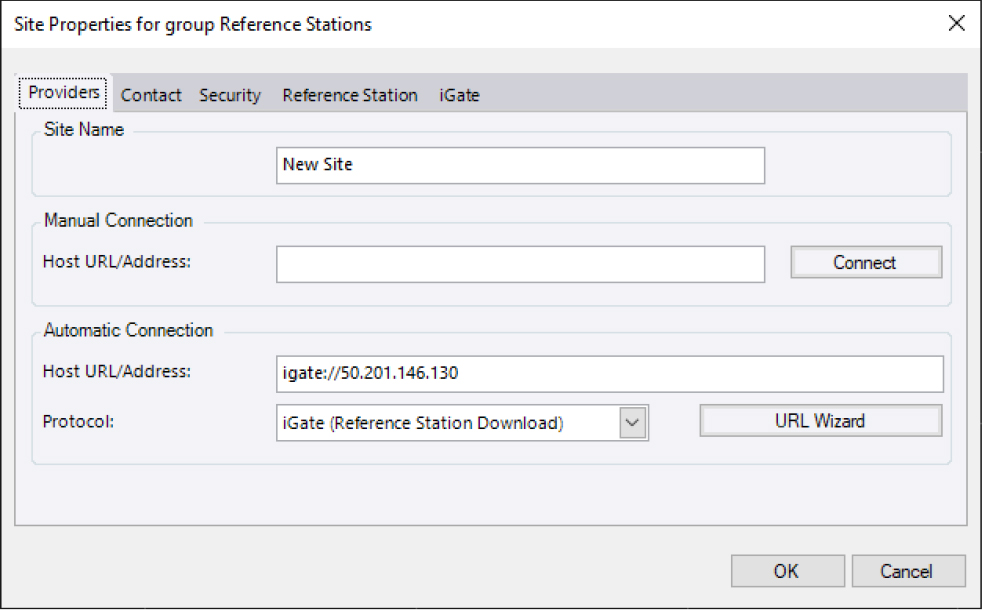
Figure 2
Figures 2 – 4 display the different windows when configuring the 'New Site' for the first time.
- Under the PROVIDERS tab, name the site (i.e. CSDS).
- Manual connection can be left blank, and for Automatic Connection, the host URL is igate://50.201.146.130.
- Under the Protocol dropdown, select iGate (Reference Station Download)
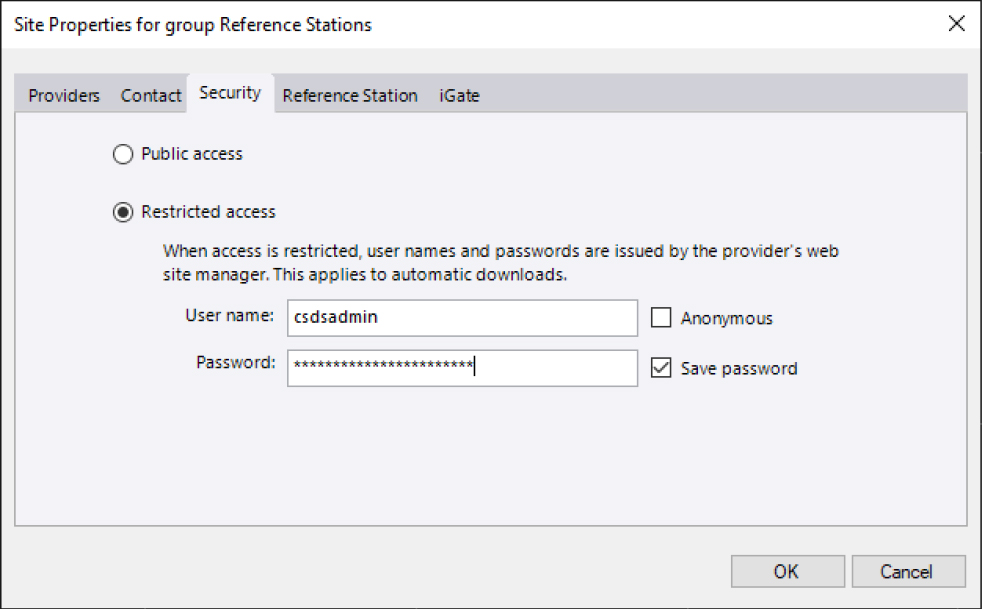
Figure 3
- Now, under the SECURITY tab, select the Restricted Access bubble and enter your login information from the welcome email you received. Make sure “Save password” is checked.
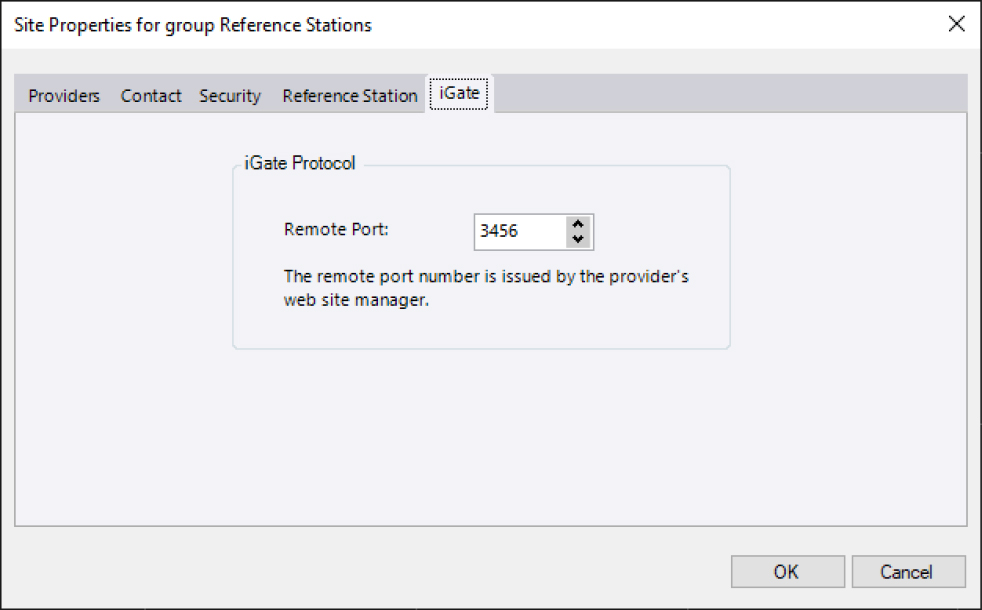
Figure 4
- Finally, on the iGATE tab, ensure the port selected is 3456.
- Click OK and your new site should show up in the Internet Download window.
- You can now select the Site and click Automatic at the bottom of the window and proceed to select the day and time and stations you wish to download from.
If you receive an error message saying No subscription available for download, please contact [email protected]
Refer to Figure 1 for the following steps:
- In your project within Trimble Business Center (TBC), select the SURVEY tab
- Within the GNSS section, click on Internet Download. This opens a window on the right-hand side.
- Select the blank paper icon to open the Internet Download Configuration window.
- Click New Site, ensure the bubble for “Enter details manually” is filled, then select OK
Figure 1
Figures 2 – 4 display the different windows when configuring the new site for the first time.
- Under the PROVIDERS tab, name the site (i.e. CSDS)
- Manual connection can be left blank, and for Automatic Connection, the host URL is igate://50.201.146.130
- Under the Protocol dropdown, select iGate (Reference Station Download)
- Now, under the SECURITY tab, select the Restricted Access bubble and enter your login information from the welcome email you received. Make sure “Save password” is checked.
- Finally, on the iGATE tab, ensure the port selected is 3456
- Click OK and your new site should show up in the Internet Download window.
- You can now select the Site and click Automatic at the bottom of the window and proceed to select the day and time and stations you wish to download from.
Figure 2
Figure 3
Figure 4
If you receive an error message saying no subscription available for download, please contact [email protected]
Still have questions?